
Once you have created a draft invoice or quote, ATB Invoicing offers flexible delivery options. You can test the delivery first, send directly through the platform via email or text message, deliver documents using your own channels, or resend active documents as reminders.
Important after sending: Once an invoice or quote is sent, line items, pricing, tax rates, and document numbers become permanently locked. You will only be able to update customer notes and due/expiry dates. If significant changes are needed after sending, you must void the document and issue a new one.
Recommended: Send a test copy first
Before sending a document to your client, you can send a test copy to yourself to preview the notification message, review your branding, and experience what your customer will see.
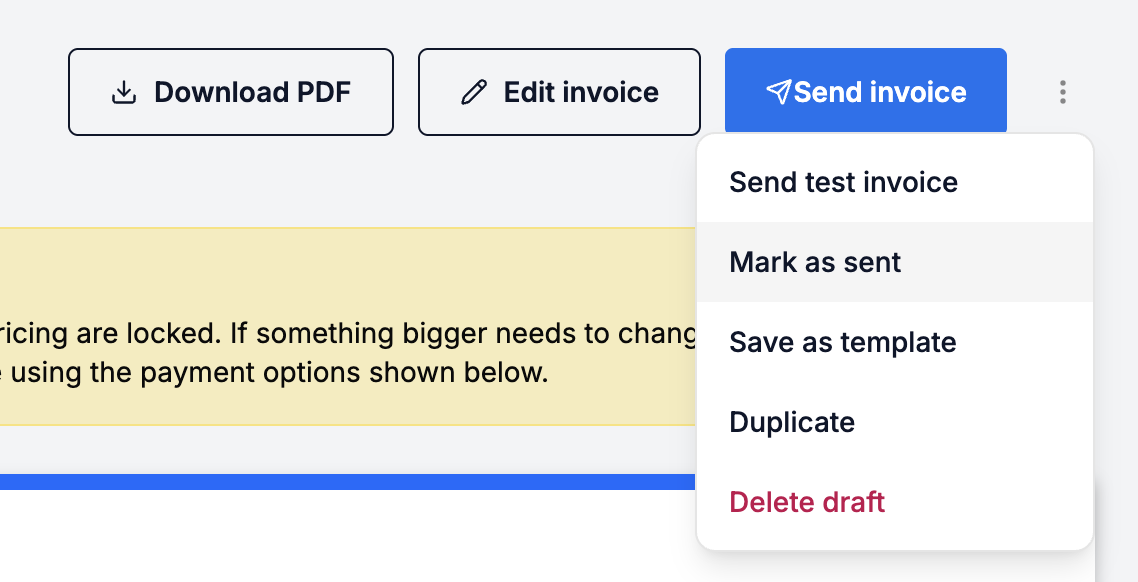
- Open the draft invoice or quote and click the three dots (...) menu.
- Click Send test quote or invoice.
- Enter your email address and click send.
- You will see an example of the email your customer will receive, along with an example of the Quote or Invoice webpage.
- Once you are satisfied with how it looks, return to the document to send it to your customer.

Option 1: Send directly through ATB Invoicing
Sending through the platform allows ATB Invoicing to handle delivery notifications and automatically track when your customer opens the document.
Step-by-step delivery
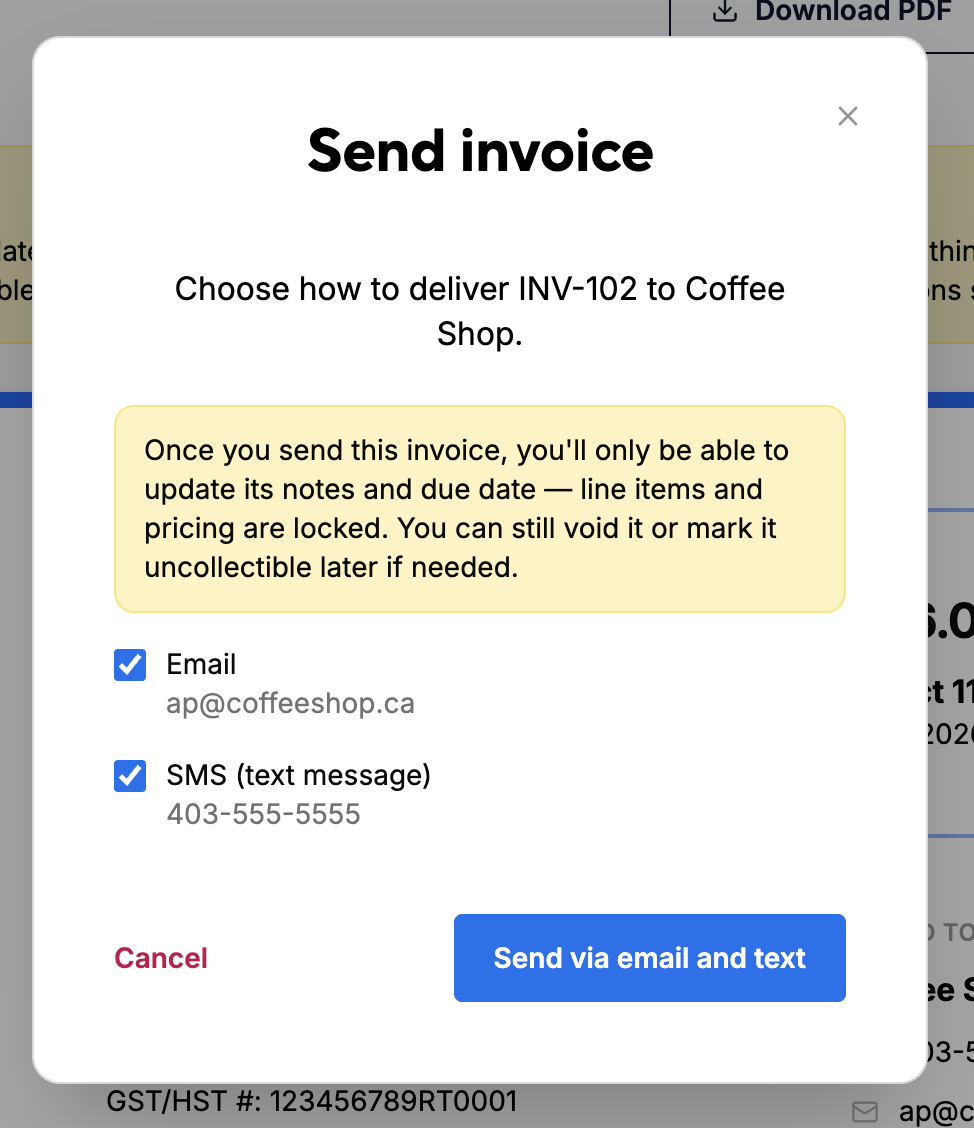
- Open the draft invoice or quote and click Send invoice or Send quote in the top header.
- In the modal, choose your preferred delivery channel(s):
- Email: Sends an email notification containing a secure link to the invoice or quote.
- SMS (Text message): Sends a text message notification with a secure link.
- Note: You can select one or both channels simultaneously.
- Delivery automatically defaults to the customer's designated Contact Email and Contact Phone Number (rather than the general billing contact).
- Click Send.
Customers will receive the email from ATB Payroll's automated address, but any replies will go directly to your business email.
Customer link security & experience
- Initial access: When your customer receives the email or text, the secure link is active for 15 minutes and can be opened once.
- Re-authenticating access: If the link expires or has already been opened, opening it again will prompt the customer to click "Send me a secure link." This sends a fresh, secure link directly to either their email or phone to grant immediate access.
Option 2: Send using your own channels
If you prefer to send documents directly from your personal email inbox, print physical copies, or send links through instant messaging, you can manage delivery yourself.
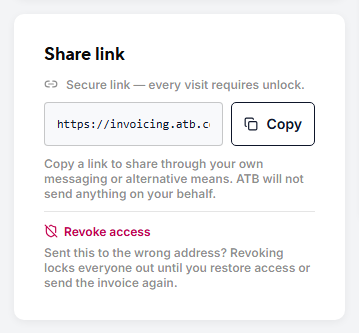
Method A: Share via permalink
- Open the invoice or quote details page.
- Copy the unique Permalink generated for the document.
- Paste and send the link using your preferred messaging or email client. This will still require the customer to validate their identity through clicking "Send me a secure link".
Method B: Download and share PDF
- Open the invoice or quote details page.
- Click Download PDF in the top right header.
- Attach the downloaded PDF to your email or print a physical copy.
Resending an invoice or quote
If a customer missed your notification, needs a gentle payment reminder, or requests another copy, you can easily resend active documents.
Availability
The resend option is available for active, unpaid documents carrying any of the following statuses:
- Sent
- Viewed
- Overdue
How to resend
- For Invoices: Open the invoice page and click the Resend invoice button directly in the top header (or select it from the three dots (...) menu).
- For Quotes: Open the quote page, click the three dots (...) menu in the top right corner, and select Resend quote.
Selecting resend opens the delivery modal, allowing you to trigger a new email or text notification to the customer.
Tracking delivery and view statuses
When sending invoices or quotes using your own channels, manually update your status to maintain accurate dashboard tracking:
- Mark as Sent: After manually delivering a PDF or link, click the three dots (...) menu on the document page and select Mark as sent. The status will update from
DrafttoSent.
- Automatic "Viewed" updates: Whenever a customer opens an invoice or quote via its permalink (whether sent through the platform or shared by you), ATB Invoicing automatically updates the status to Viewed. This is not tracked for viewing PDF downloads.

