
Templates store the line items, tax settings, notes and payment details you use again and again, so a new invoice or quote starts mostly filled in. Follow the steps below to create a template, use it, make it your default, and keep your templates organized.
Before you begin
You will need permission to manage invoices and quotes to create, change or delete templates.
Templates are shared across your organization. Invoice templates and quote templates are separate: an invoice template only appears when you create an invoice, and a quote template only appears when you create a quote.
Step 1: Create a template
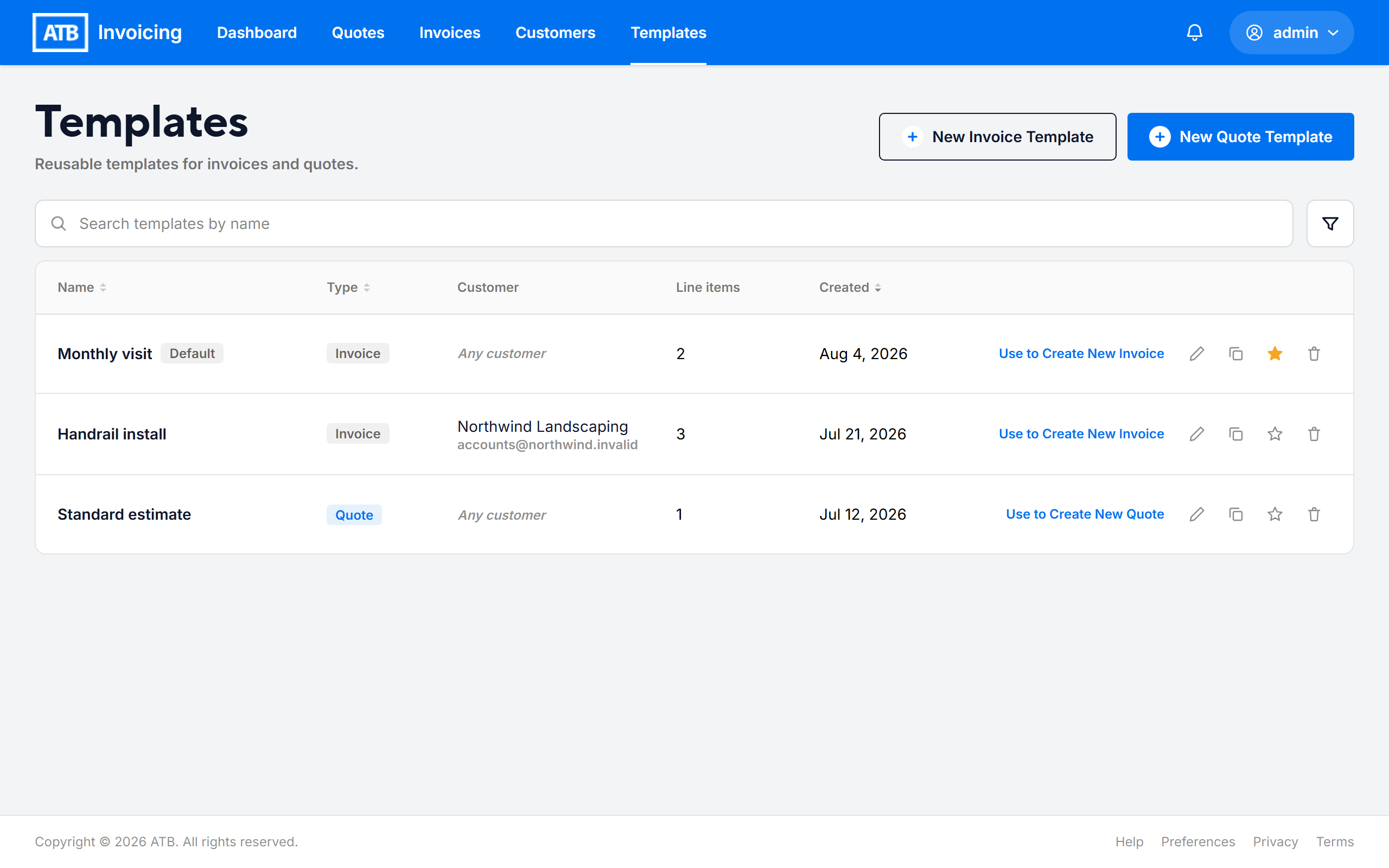
- Click Templates in the top navigation.
- Click New Invoice Template or New Quote Template.
- Enter a Template name, for example "Monthly retainer". Each name must be unique.
- Optionally, choose a customer under Customer (optional). Leave it blank to use the template with any customer.
- Add Line items, taxes and Customer notes, and choose a Tax Setting.
- Complete the payment section:
- For an invoice template, choose the Payment options.
- For a quote template, choose the Payment methods. Under Quote defaults, you can set Quote validity (days) and tick Override payment terms to use specific terms instead of the customer's or organization's defaults.
- Click Save template.
Step 2: Save an existing invoice or quote as a template
You can also turn work you have already done into a template.
- From an invoice: open the invoice, open the more actions menu (the three-dot button), and click Save as template. Enter a Template name and click Save template.
- From a new draft: while creating an invoice or quote, click the Template: button at the top of the form and click + Save as new template. This option is available once the draft has at least one valid line item.
In both cases, tick Set as default template if you want new documents to start from it.
Step 3: Create an invoice or quote from a template
From the Templates page: click Use to Create New Invoice or Use to Create New Quote on the template's row.
From a new draft:
- Start a new invoice or quote.
- Click the Template: button at the top of the form.
- Select a template. To start without one, select Blank invoice or Blank quote.
The form fills in with the template's details, and the page shows "Starting from template:" with the template name. Review and change anything you need before you save.
Note. If you switch templates after you start typing, ATB Invoicing asks "Discard your changes and switch templates?" Click Discard changes only if you want to lose what you entered.
Step 4: Set a default template
A default template fills in every new invoice or quote automatically. You can have one default invoice template and one default quote template.
- On the Templates page, click the star icon on a template's row. A Default badge appears next to its name. Click the star again to remove the default.
- On a new draft, open the Template: menu and click Set as default next to a template. Choose Set as default next to Blank invoice or Blank quote to stop using a default.
Step 5: Edit, duplicate or delete a template
On the Templates page, use the icons on the template's row:
- Edit template (pencil icon): change the template and save.
- Duplicate template (copy icon): create a copy and open it for editing.
- Delete template (trash icon): click Delete template to confirm.
Editing or deleting a template does not change any invoice or quote you already created from it.
Warning. Deleting a template cannot be undone.
To find a template, use Search templates by name, or click the filter button to filter by Type (Invoice or Quote) and Created date. You can sort the list by Name, Type or Created.
Common issues
I see "A template with this name already exists"
Template names must be unique within your organization. Choose a different name.
A template could not be loaded
The template may have been deleted. Click Start a blank invoice or Start a blank quote to continue without it. When starting an invoice, you can also click Back to templates to choose another.

