
ATB Invoicing uses your ATB Business sign-in, the same login you use for ATB online business banking. This article walks you through signing in, including the one-time steps you see the first time.
Before you begin
You will need:
- An ATB Business login for a business with an ATB business account.
Step 1: Open the sign-in page
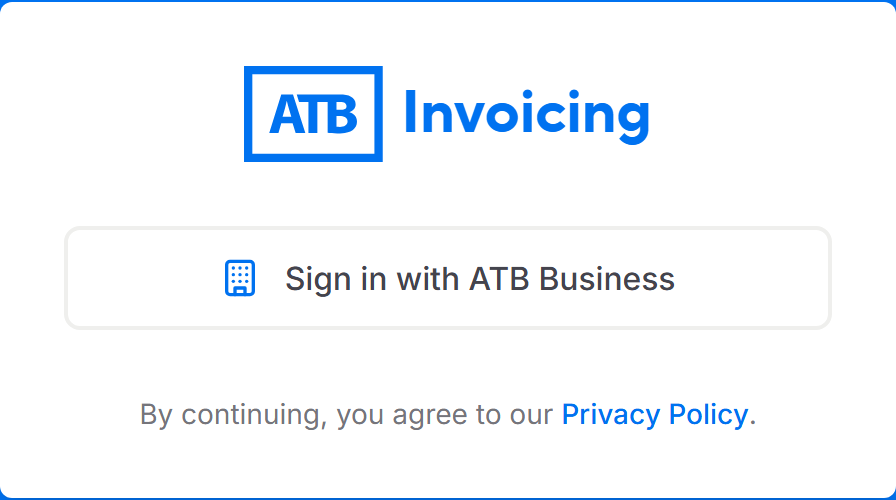
Go to the ATB Invoicing website and click Sign in or Get started. The sign-in page opens with a Sign in with ATB Business button.
Step 2: Sign in with your ATB Business login
Click Sign in with ATB Business. You are taken to the ATB sign-in page. Enter your ATB Business credentials and complete any verification prompts.
After ATB confirms your identity, you return to ATB Invoicing. If you have signed in before, your dashboard opens.
Step 3: Accept the terms and conditions (first time only)
The first time you sign in, the Terms and conditions page opens.
- Scroll to the end of the ATB Invoicing Terms and Conditions. The checkbox stays disabled until you reach the bottom.
- Select I have read and agree to the ATB Invoicing Terms and Conditions.
- Click Accept and continue.
Step 4: Set up or join your organization (first time only)
What you see next depends on whether your business already uses ATB Invoicing.
If your business is new to ATB Invoicing, a short setup wizard opens. Click Next to move through each step:
- We found your business name — confirm your legal business name, and choose whether to show it at the top of your invoices. If you choose No, you enter the name you want customers to see.
- Set up your business profile — enter your Business email, Business address, and GST/HST number. If your business does not need to register for GST/HST, select I am exempt from GST/HST registration instead.
- Add your branding — optionally pick a Brand color and upload a Logo.
- How do you want to receive payments? — set up and save at least one payment method.
- Review your setup — check your details, then click Finish setup.
When setup is complete, your dashboard opens with a You're all set! message. Click Create an Invoice to add your first customer.
Note. Only a corporate admin for your business can set up ATB Invoicing. If you are not a corporate admin, you see Your corporate admin needs to set up Invoicing. Ask your corporate admin to sign in and complete setup, then sign in again.
If your business already uses ATB Invoicing, you see a message that your business is already set up. Click Join as a team member, then click Continue. Your organization's administrator manages your role and permissions. See Managing administrators and sub-users.
Common issues
"Please try again." appears on the sign-in page.
Sign-in did not complete. Click Sign in with ATB Business again. If the problem continues, see Why can't I sign in to ATB Invoicing?.
"Your business needs an administrator" appears after signing in.
Your business is set up in ATB Invoicing, but no administrator is available to manage members. Ask a colleague who administers your organization to sign in, or contact support to restore access.

