
Everyone in your ATB Invoicing organization has one of two roles: Admin or User. This article explains how people join your organization, what each role can do, and how an administrator changes what users are allowed to do.
How roles are assigned
- Admin — the corporate admin who sets up your business in ATB Invoicing becomes the organization's administrator.
- User — anyone else from your business who signs in with their ATB Business login joins as a team member with the User role.
People join your organization by signing in. When a team member signs in for the first time, ATB Invoicing recognizes that your business is already set up and asks them to click Join as a team member. You do not send invitations from within ATB Invoicing.
Note. Roles cannot be changed from within ATB Invoicing. Contact ATB Invoicing support if your organization needs a different administrator.
What each role can do
An administrator always has every permission. An administrator also manages your organization's settings and decides what the User role can do.
Users start with view-only access: they can view invoices and quotes, and view the customer list and customer profiles. They cannot create or change anything until an administrator grants more permissions.
Step 1: Open Manage Organization
You must be an administrator to complete these steps.
- In the top right of the header, click your name.
- Click Manage Organization.
Step 2: Review your team members
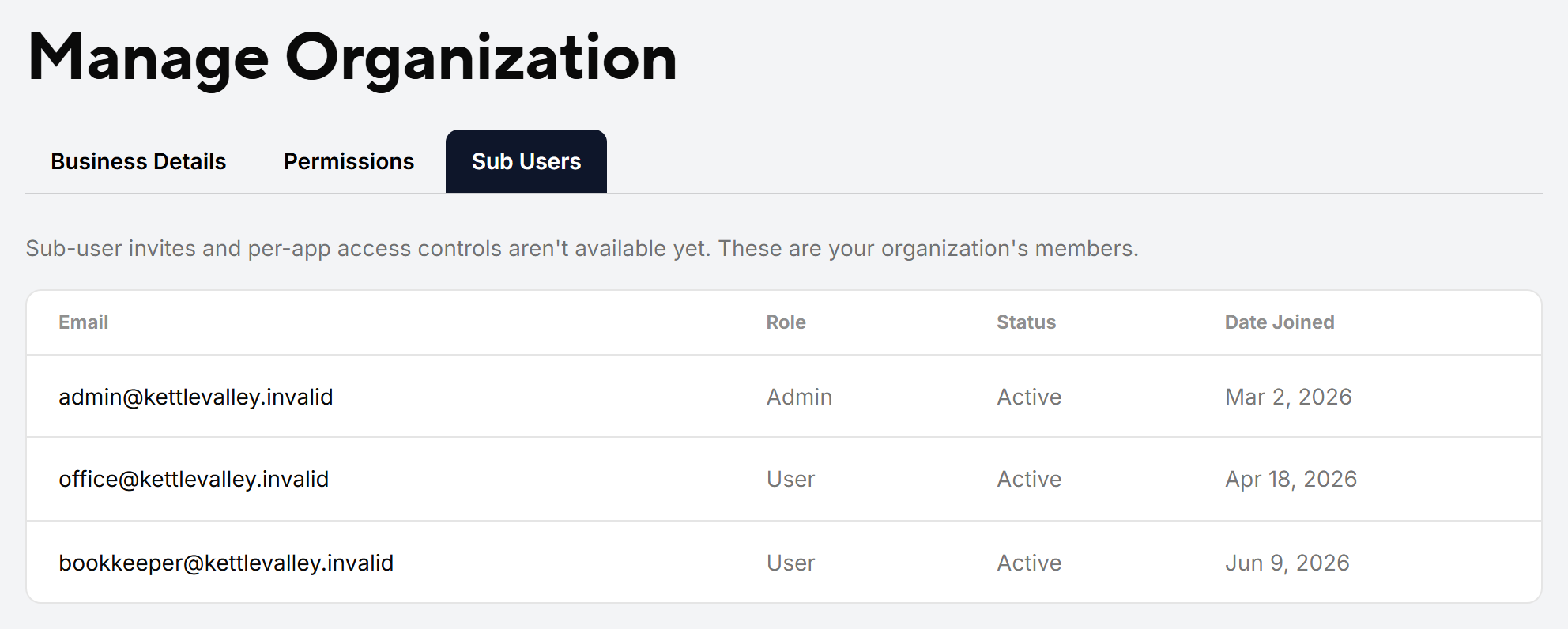
Click the Sub Users tab. The table lists everyone in your organization with their Email, Role, Status, and Date Joined.
Step 3: Choose what users can do
Click the Permissions tab. The table shows each permission with a checkbox for Admin and for User. The Admin column is always fully selected and cannot be changed.
Select or clear the User checkbox for each permission:
- Manage business profile — edit company details, payment types and terms, logos, and brand colours.
- Create and manage invoices — create, send, and void invoices and quotes, and create templates.
- View invoices — view and download all invoices and quotes.
- Create and manage clients — add, edit, and delete customers.
- View clients — access the customer list and view customer profiles.
- Manage accounts — add or remove connected accounts. This permission is for administrators only and cannot be given to users.
Step 4: Save your changes
- Click Save Changes.
- In the Confirm Permission Changes dialog, click Confirm.
Warning. Permission changes apply to every person with the User role in your organization. You cannot set different permissions for individual users.
Common issues
A user sees "You don't have permission to create an invoice."
Their role does not include Create and manage invoices. An administrator can turn it on in the Permissions tab.
I do not see Manage Organization in my profile menu.
Only administrators see Manage Organization. Ask your organization's administrator to make the change.

