
The Customers page lists everyone you invoice and shows at a glance who has open invoices or quotes. This article shows you how to search and filter the list, read a customer's balances, and set the payment options a customer prefers.
Step 1: Open your customer list
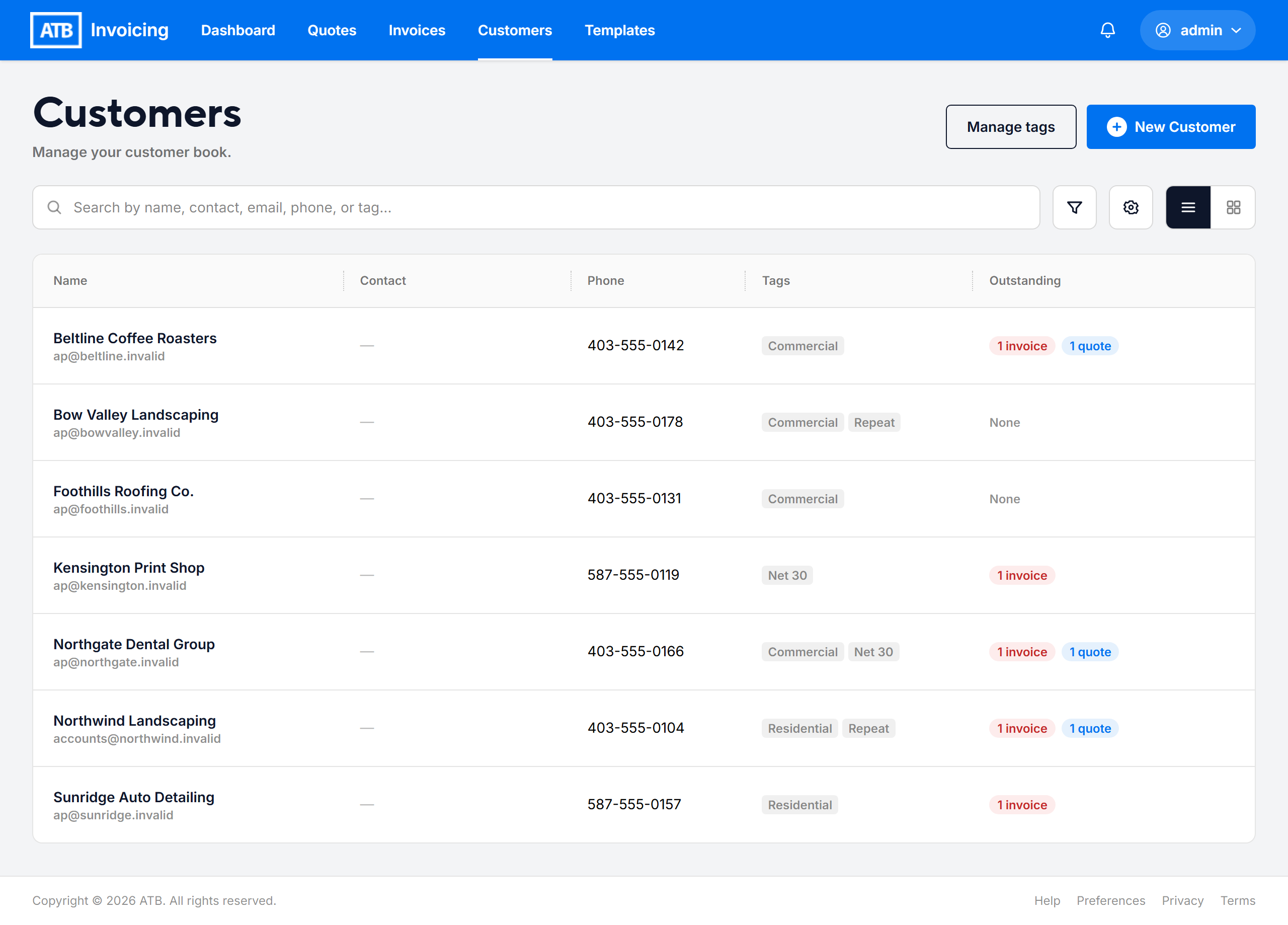
Click Customers in the top navigation. By default, the list shows your active customers, 25 per page. Use the page controls at the bottom to move through the list.
The list view has these columns:
- Name: the customer's legal name and email. Archived customers show an Archived label.
- Contact: the contact person's name, email and phone, if you added one.
- Phone: the customer's business phone number.
- Tags: up to three tags, with a count if there are more.
- Outstanding: how many invoices and quotes are still open for this customer, or None.
Click any row to open the customer.
Step 2: Search and filter
Type in the search box to find customers by name, contact name, email, phone number or tag. Matching text is highlighted in the results.
To filter the list:
- Click the filter icon beside the search box.
- Under Status, choose Active, Archived or All customers.
- Under Tags, select any tags you want to filter by.
- Click Apply Filters.
Active filters appear as chips above the list. Click the × on a chip to remove it, or click Clear filters to remove them all.
Step 3: Change how the list looks
- Use the view toggle to switch between List view and Card view. Your browser remembers your choice. On smaller screens, the list always uses card view.
- In list view, click Column settings to show, hide or reorder columns. You can also drag a column header to reorder it.
Step 4: Read a customer's balances
Open a customer to see the Account Summary tab. The top of the tab shows:
- Invoices: the number of invoices created for this customer.
- Total invoiced: the combined total of those invoices.
- Lifetime paid: the total of invoices that are fully paid.
- Outstanding: the total of invoices that are Sent, Viewed or Partially Paid, including overdue ones.
- Quotes, Total quoted and Accepted: the same view for quotes.
Below the totals, the Invoices and Quotes sections list the customer's most recent documents with their status, date and amount. Click one to open it.
Note. The Outstanding column on the customer list counts open quotes that are Sent or Viewed and not yet expired. Quotes are not money owed, so they do not add to the Outstanding dollar amount on the customer page.
Step 5: Set preferred payment methods
You can choose which payment options are preselected when you create an invoice or quote for a customer.
- Open the customer and click the Customer Settings tab.
- Click the Payment Preferences card.
- Select the methods this customer uses: Interac e-Transfer, EFT (direct deposit), Cheque or Cash.
- Click Save.
Only the payment options your organization has set up can be selected. Others appear greyed out. Until you save preferences for a customer, they use your organization's payment options. To go back to your organization's options, clear every method and click Save.
Tip. Preferences only preselect options. You can still change the payment options on each invoice or quote.

