
When you stop working with a customer, you can archive them to hide them from your active lists, or delete them if you never sent them anything. This article explains which option is available, what happens to their invoices and quotes, and how to bring an archived customer back.
Before you begin
You will need:
- The Create and manage clients permission. If you do not see the archive or delete options, ask an admin in your organization.
Archive or delete: which one you get
ATB Invoicing shows only one of the two options, based on the customer's history:
- Delete customer appears when the customer has no sent invoices or quotes. Only drafts (or nothing at all) exist for them.
- Archive customer appears when you have sent the customer at least one invoice or quote, and none of their invoices are still outstanding.
- If the customer has invoices that are Sent, Viewed, Partially Paid or Overdue, neither option is available. The page shows "Settle or void outstanding invoices before archiving this customer."
Once you send an invoice or quote to a customer, you can no longer delete them. This protects your invoicing history for tax and audit purposes.
Step 1: Open the customer's settings
- Click Customers in the top navigation.
- Click the customer's name to open their page.
- Click the Customer Settings tab.
The archive or delete option is at the bottom of the tab, below Payment Preferences.
Step 2: Archive the customer
- Click Archive customer.
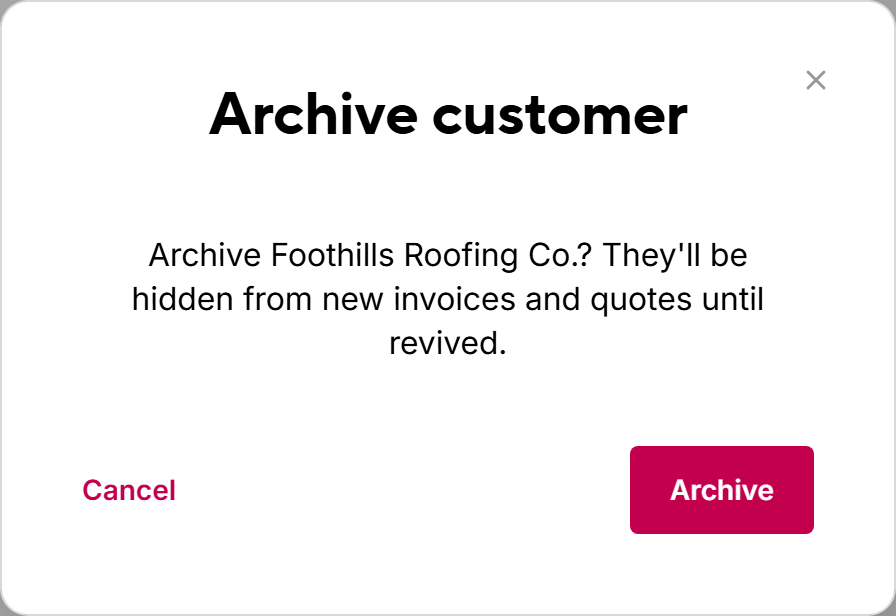
- In the confirmation dialog, click Archive.
The customer's page now shows an Archived label and a notice that their historical record is locked. Their invoices and quotes stay exactly as they were, and you can still open them from the customer's Account Summary tab.
While a customer is archived:
- They do not appear in the default Active view of your customer list.
- You cannot create new invoices or quotes for them.
- You cannot edit their details.
Step 3 (alternative): Delete the customer
If Delete customer is shown instead:
- Click Delete customer.
- In the confirmation dialog, click Delete.
The customer is removed and you return to your customer list.
Warning. Deleting a customer cannot be undone. Any draft invoices or quotes you created for that customer are deleted with them.
Step 4: Unarchive a customer
You can bring an archived customer back at any time. Use either method:
- Open the customer's page and click Unarchive Customer at the top right.
- On the Customers page, open the filters, set Status to Archived, and click Apply Filters. Then click Revive on the customer's card, or open the row's actions menu and choose Revive.
The customer returns to your active list, and you can edit them and invoice them again.
Common issues
I cannot see the Delete customer button
The customer has at least one invoice or quote that was sent. Archive the customer instead. If you need to cancel a specific invoice, void it. See Voiding and deleting invoices and quotes.
I cannot see the Archive customer button
The customer still has outstanding invoices. Record the payment or void each outstanding invoice, then return to the Customer Settings tab.
I deleted a customer by mistake
Deleted customers cannot be restored. Add the customer again. See Add a customer.

