
Keep a customer's name, contact information and addresses current so your invoices and quotes reach the right person. This article shows you how to edit each section of a customer's record and their default settings.
Before you begin
You will need:
- The Create and manage clients permission.
- An active customer. Archived customers cannot be edited until you unarchive them. See Archiving or deleting a customer.
Step 1: Open the customer
- Click Customers in the top navigation.
- Click the customer's name.
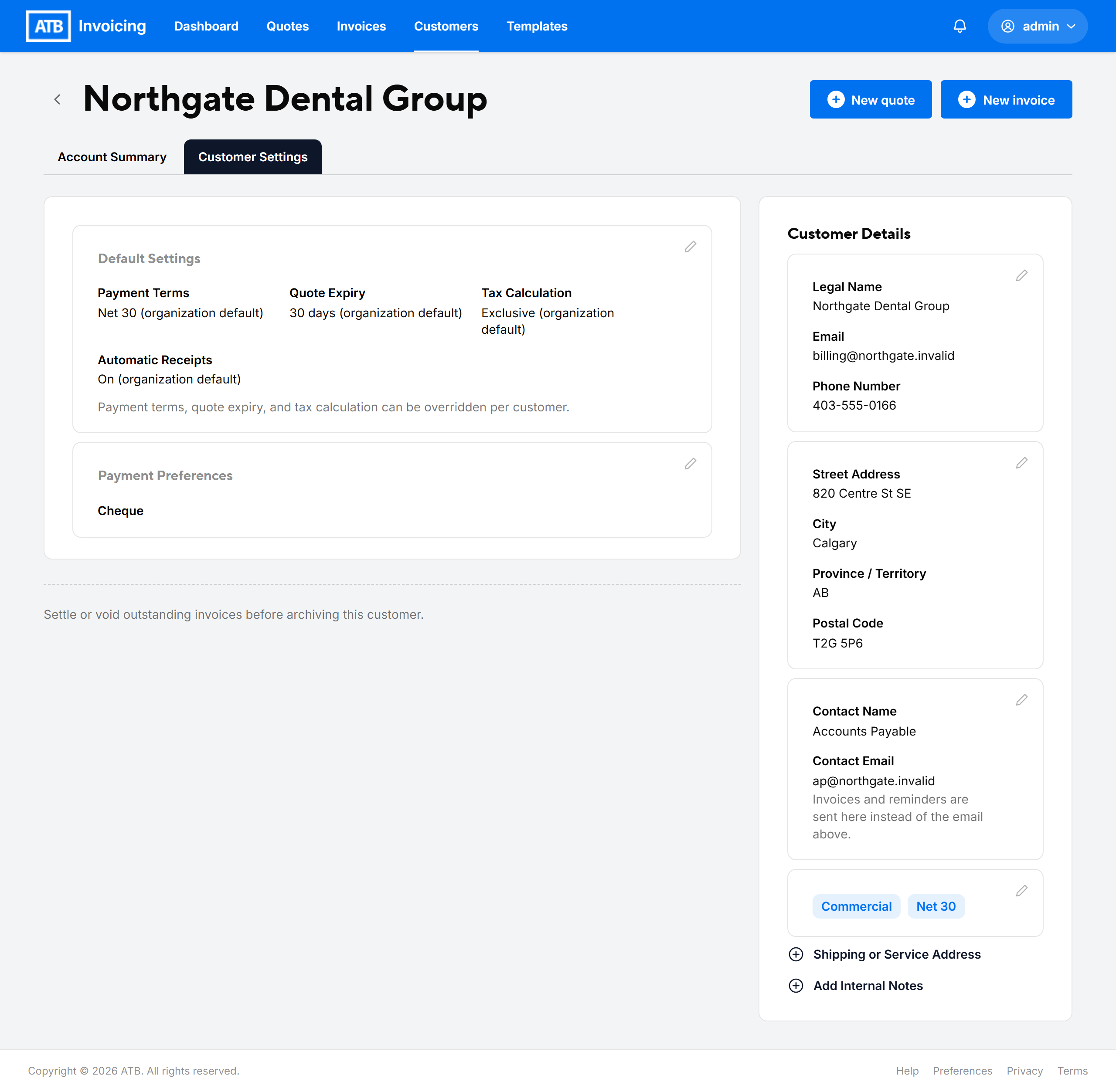
The Customer Details panel on the right lists each section of the customer's record. Sections that already have information show it in a card. Empty sections show a link, such as Add Contact Info or Add Internal Notes.
Step 2: Edit a section
Click a card (or its pencil icon) to edit it, or click the link for an empty section. Each section opens and saves on its own:
- Business Details: Legal Name (required), Email and Phone Number.
- Contact Info: select Contact information is different from above to add a separate Contact Name, Contact Email and Contact Phone Number.
- Billing Address: Street Address, Address Line 2, City, Province / Territory, Postal Code and Country. The province drives the tax suggestions on new invoices and quotes.
- Shipping or Service Address: an address for where you deliver goods or perform work, if it differs from the billing address.
- Internal Notes: notes for your team. Customers never see them.
- Tags: labels for grouping customers. See Organizing customers with tags.
Make your changes and click Save. To leave without saving, click Cancel. If you have unsaved changes, ATB Invoicing asks you to keep editing or discard them.
Note. If a customer has a contact email or phone number, invoices and quotes are delivered there instead of to the business email or phone number.
Step 3: Change the customer's default settings
Click the Customer Settings tab to change settings that apply only to this customer.
- Default Settings lets you override your organization's Payment Terms, Quote Expiry, Tax Calculation and Automatic Receipts for this customer. Choose Use organization default to go back to your organization's setting.
- Payment Preferences sets which payment options are preselected on new invoices and quotes for this customer. See Navigating and managing your customer directory.
Click the card to edit it, then click Save.
How edits affect existing invoices and quotes
Invoices and quotes are linked to the customer record. When you change a customer's name, email, phone number or address, the new details appear on that customer's invoices and quotes, including ones you already sent.
Default settings work differently. Payment terms, quote expiry and tax calculation are applied when you create an invoice or quote, so changing them affects only new documents.
Warning. If you change the email address or phone number that invoices are delivered to, any links you already sent to this customer stop working. Send the invoice or quote again so the customer receives a new link.
Common issues
The cards have no pencil icon and do not open
Either the customer is archived, or you do not have the Create and manage clients permission. Unarchive the customer, or ask an admin for access.
Save shows an error on the email or phone field
Check the format of the email address or phone number. Legal Name cannot be blank.

