
You can remove an invoice or quote you no longer need by deleting it or voiding it, depending on whether it has been sent. This article explains which option applies and walks you through each one.
Delete or void: which one applies
- Delete permanently removes a Draft that was never sent. No record is kept.
- Void cancels an invoice or quote you have already sent. The document stays on record for your audit trail, but it can no longer be paid or accepted.
| Status | Invoices | Quotes |
|---|---|---|
| Draft (including Scheduled) | Delete | Delete |
| Sent, Viewed | Void | Void |
| Overdue | Void | — |
| Partially Paid | Void | — |
| Paid, Uncollectible, Written off | Neither | — |
| Accepted, Rejected, Expired | — | Neither |
You cannot void a draft, and you cannot delete a document once it has been sent. Paid invoices and quotes your customer has already responded to are permanent records.
Before you begin
You will need permission to manage invoices and quotes. If you do not see the options below, ask an administrator.
Step 1: Delete a draft
- Open the draft invoice or quote, or find it on the Invoices or Quotes page.
- Open the more actions menu (the three-dot button) and click Delete draft.
- Click Delete draft to confirm.
The draft is permanently removed and you return to the list.
Warning. Deleting a draft cannot be undone. If you might need the details later, leave the draft in place instead.
Step 2: Void a sent invoice or quote
- Open the invoice or quote.
- Open the more actions menu (the three-dot button) and click Void invoice or Void quote.
- Click Void invoice or Void quote again to confirm.
The status changes to Void.
To void several quotes at once, select them on the Quotes page and click Void in the action bar. Every selected quote must be Sent or Viewed for the option to appear.
Warning. Voiding cannot be undone. A voided invoice or quote cannot be sent, paid, accepted or restored.
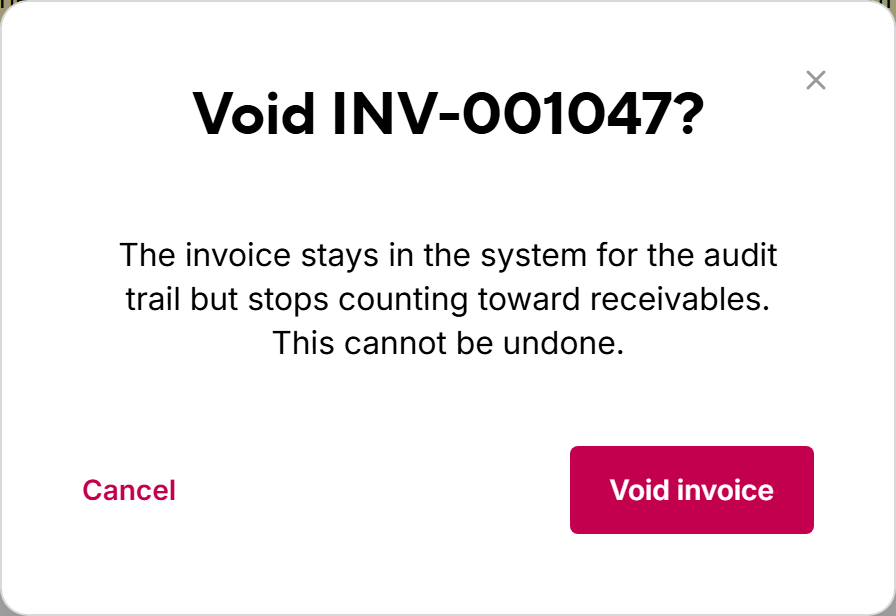
What happens after you void
- The customer's link to the invoice or quote stops showing the document.
- A voided invoice can no longer be paid through its link, and it stops counting toward your receivables.
- A voided quote can no longer be accepted, so it never converts to an invoice.
- The document stays in your list with the status Void. On the Invoices page, use the Void filter to find it.
- You can still edit internal notes on a voided document. Everything else is locked.
Note. If your customer may have already started paying by another method, such as EFT or cheque, contact them to let them know the invoice is cancelled.
Step 3: Issue a replacement
Voiding is how you correct a mistake on a sent document. To send the corrected version:
- Invoice: open the voided invoice, open the more actions menu, and click Duplicate. Fix the details on the new draft and send it.
- Quote: open the voided quote, open the more actions menu, and click Duplicate & revise. The new quote links back to the original with Revised from QUO-….
Common issues
I do not see Void on a draft
Drafts are deleted, not voided. Use Delete draft instead.
I do not see Delete draft on a sent invoice
Sent documents cannot be deleted. Use Void invoice or Void quote instead.

