
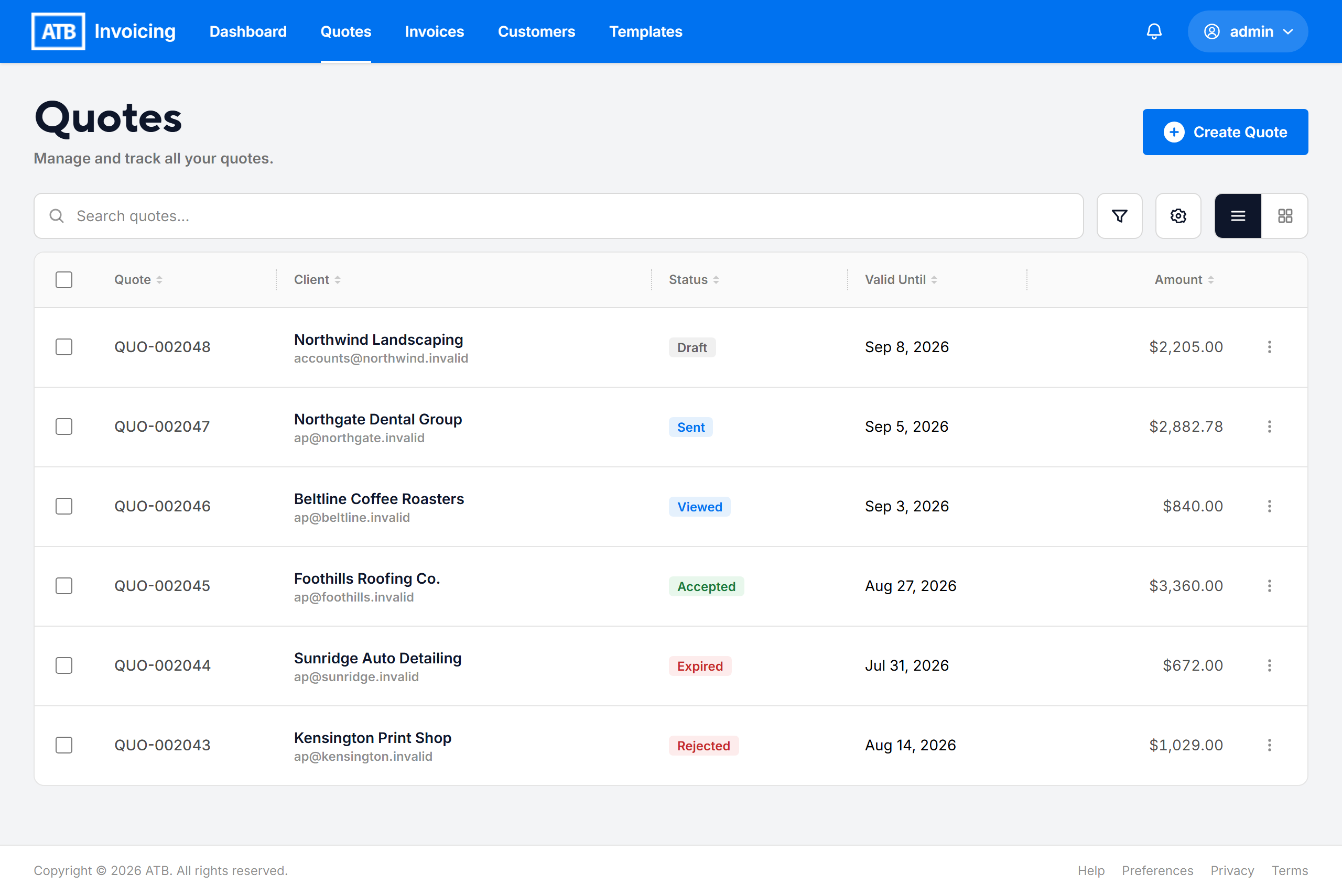
The Quotes page lists every quote your organization has created, with its status, value and expiry date. Follow the steps below to find a quote, change how the list looks, and act on one or several quotes at once.
Step 1: Open the Quotes page
Click Quotes in the top navigation. Each quote shows:
- Quote #: the quote number, for example QUO-042. Click it to open the quote.
- Client: the customer the quote is prepared for.
- Status: Draft, Sent, Viewed, Accepted, Rejected, Expired or Void.
- Valid Until: the date the quote expires.
- Amount: the quote total.
To create a new quote, click Create Quote. See Creating a draft quote.
Step 2: Search for a quote
Type in the Search quotes... box. The search matches:
- The customer's name or email address
- The contact name or contact email on the customer record
- Text in the quote's customer notes
- The quote number, when you type digits only. For example, type 42 to find QUO-042.
The list updates as you type. To clear the search, remove the Search tag below the toolbar.
Step 3: Filter and sort the list
- Click the filter button next to the search box.
- Under Status, choose a status, or All Statuses.
- Under Date sent, choose a date range, or Any Time.
- Click Apply Filters.
Active filters appear as tags below the toolbar. Click a tag's remove button to clear that filter, or clear them all at once. Click Clear All in the filter panel to reset it.
To sort, click a column heading: Quote, Client, Status, Valid Until or Amount. Click the same heading again to reverse the order.
Tip. A sent quote shows Expired as soon as its Valid until date passes without a response from your customer.
Step 4: Change the view
- Use the List view and Card view buttons to switch between a table and cards.
- In list view, click the columns button to open Column Settings. Drag columns to reorder them, and use the toggles to show or hide them. Quote # always stays visible.
Step 5: Act on a single quote
Open the row menu (the three-dot button) on any quote. The options depend on the quote's status and can include:
- Edit for drafts and for sent or viewed quotes
- Send quote for drafts
- Resend quote, Mark as followed up and Record decision for sent or viewed quotes
- Mark as sent for drafts you delivered yourself
- See invoice for accepted quotes that have converted to an invoice
- Download PDF and Duplicate & revise for every quote, and Send test quote for every quote except voided ones
- Void quote for sent or viewed quotes, and Delete draft for drafts
Use Record decision when your customer accepts or rejects a quote outside ATB Invoicing. Accepting it creates a draft invoice. See Converting quotes to invoices automatically.
Step 6: Act on several quotes at once
- Tick the checkbox next to each quote, or tick the checkbox in the header to select every quote on the page.
- Choose an action from the bar at the bottom of the page: Send, Mark as followed up or Void.
An action only appears when it applies to every selected quote. For example, Void appears only if all selected quotes are Sent or Viewed. Click the clear button in the bar to deselect everything.
Warning. Voiding cannot be undone. Check your selection before you click Void.
Common issues
I cannot find a voided quote
The status filter does not include a Void option. Set Status to All Statuses and search for the customer or quote number.
I do not see the row menu or the action bar options
Your role may not have permission to manage invoices and quotes. Ask an administrator.

