
When a quote is accepted, ATB Invoicing creates a draft invoice from it for you, so you do not re-enter the work your customer agreed to. This article explains what triggers the conversion, what carries over to the invoice, and what you still need to do.
What triggers the conversion
A quote converts to an invoice the moment it becomes Accepted. That happens in one of two ways:
- Your customer accepts it online. The customer opens the quote from the link you sent and clicks Accept quote.
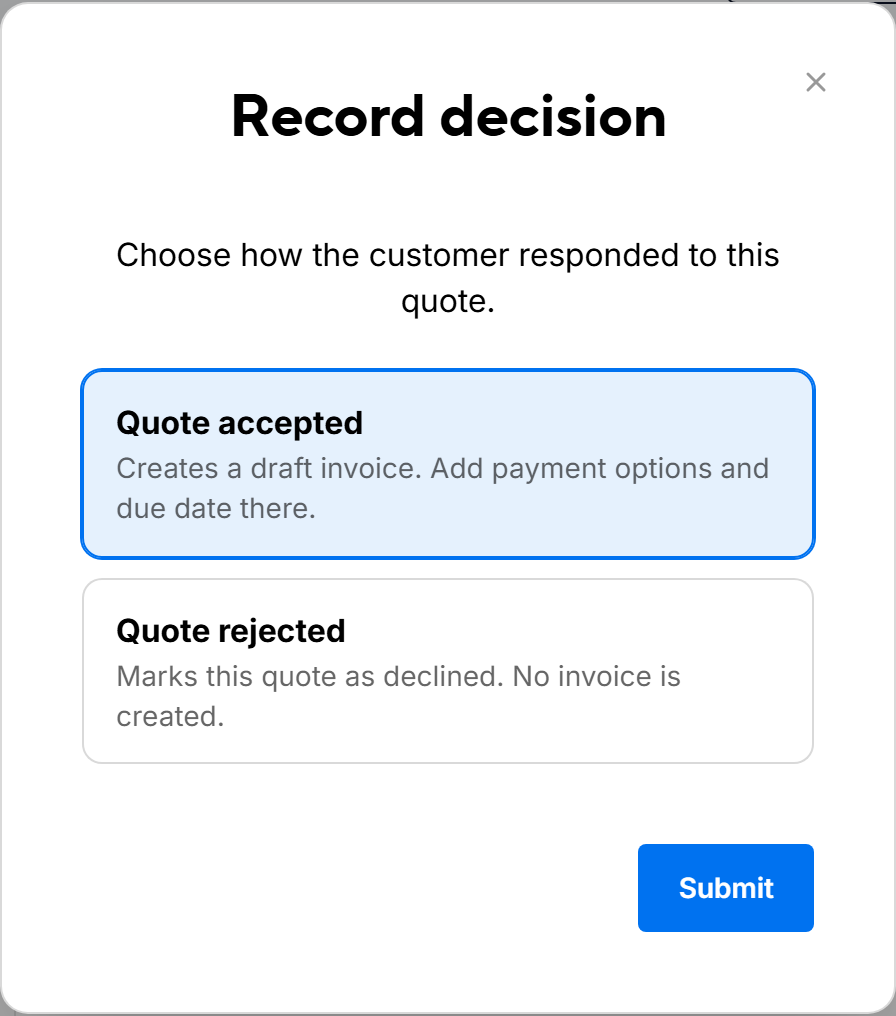
- You record the acceptance yourself. If the customer accepts by phone, email or in person, open the quote, click Record decision, select Quote accepted, and click Submit.
Either way, the quote status changes to Accepted and a new draft invoice is created at the same time. When you record the decision yourself, a message confirms the draft invoice number, for example "Draft invoice INV-142 created."
A quote can only be accepted while it is Sent or Viewed and still within its Valid until date. An expired quote cannot be accepted, so nothing converts.
Note. Each quote converts to one invoice only. Accepting a quote never creates a duplicate invoice.
What carries over to the invoice
The invoice is a copy of the terms your customer agreed to:
- The customer
- All line items, with descriptions, quantities, unit prices and line tax settings
- GST/HST and PST/QST rates, and the Tax Setting (inclusive or exclusive)
- Customer notes and the note title
- Internal notes
- The quote's service start date, or the acceptance date if the quote had none
Some details are set fresh for the invoice:
- Invoice number: the next number in your invoice sequence.
- Invoice date: the day the quote is accepted, in your organization's time zone.
- Due date: calculated from the customer's default payment terms, or from your organization's default terms if the customer has none.
- Payment options: the payment methods selected on the quote. If none were selected, ATB Invoicing uses the customer's preferred payment methods, and then any payment options your organization has turned on.
- Visibility: the invoice gets its own new link with standard access settings. It does not inherit any access settings from the quote.
After conversion, the quote and invoice are separate documents. Editing one never changes the other.
What you need to do next
The new invoice is a Draft. It is not sent to your customer automatically.
- Open the invoice. You can get there from the quote's Related card, which shows Converted to INV-…, or from the Invoices page.
- Review the due date and payment options, and make any changes.
- Click Send invoice when it is ready.
The invoice shows Created from quote QUO-… with a link back to the original quote. The quote's Activity card records the step as Converted to invoice.
Tip. Your customer only sees payment options once the quote becomes an invoice. Check that the options on the draft invoice are the ones you want your customer to use.
If an accepted quote has no invoice
In rare cases an accepted quote may not show a linked invoice. To create it, open the quote, open the more actions menu (the three-dot button), and click Convert to invoice. ATB Invoicing creates the draft invoice and opens it. This option only appears for an accepted quote that has not been converted yet. For a quote that has already converted, the row menu on the Quotes page shows See invoice instead.

