
Your organization settings control the business details that appear on your invoices and quotes, and the defaults ATB Invoicing uses when you create new ones. This article shows you how to review and change them.
Before you begin
You will need:
- An admin role. The Manage Organization option appears in the menu for admins only.
If you do not see Manage Organization, ask an admin in your organization. See Managing administrators and sub-users.
Step 1: Open Manage Organization
- Click your name in the top-right corner of the app.
- Choose Manage Organization.
The Business Details tab opens. It has two sections: Organization Details and Default Settings. The Permissions and Sub Users tabs are covered in Managing administrators and sub-users.
To edit any card, click it (or its pencil icon). Make your changes and click Save, or click Cancel to leave without saving.
Step 2: Update your business details
The Business Details card holds the information your customers see on your documents:
- Legal Name: your business's legal name from your ATB business profile. You cannot change it in ATB Invoicing.
- Display Name (required): the name shown on your invoices and quotes.
- Business Email: a contact email for your business.
- Business Address: shown on your invoices and quotes.
- GST/HST Number: enter your 9-digit Business Number in the first box and the 4-digit account number in the second, for example 123456789 and 0001. If you are not registered, select I am exempt from GST/HST registration.
- Tax Calculation: choose Exclusive (tax is added on top of line prices) or Inclusive (line prices already include tax).
Note. If you charge GST/HST, the CRA requires your GST/HST number on your invoices and receipts.
The Brand card in the same section sets your brand color and logo. See Setting up and editing your brand color and logo.
Step 3: Set your default settings
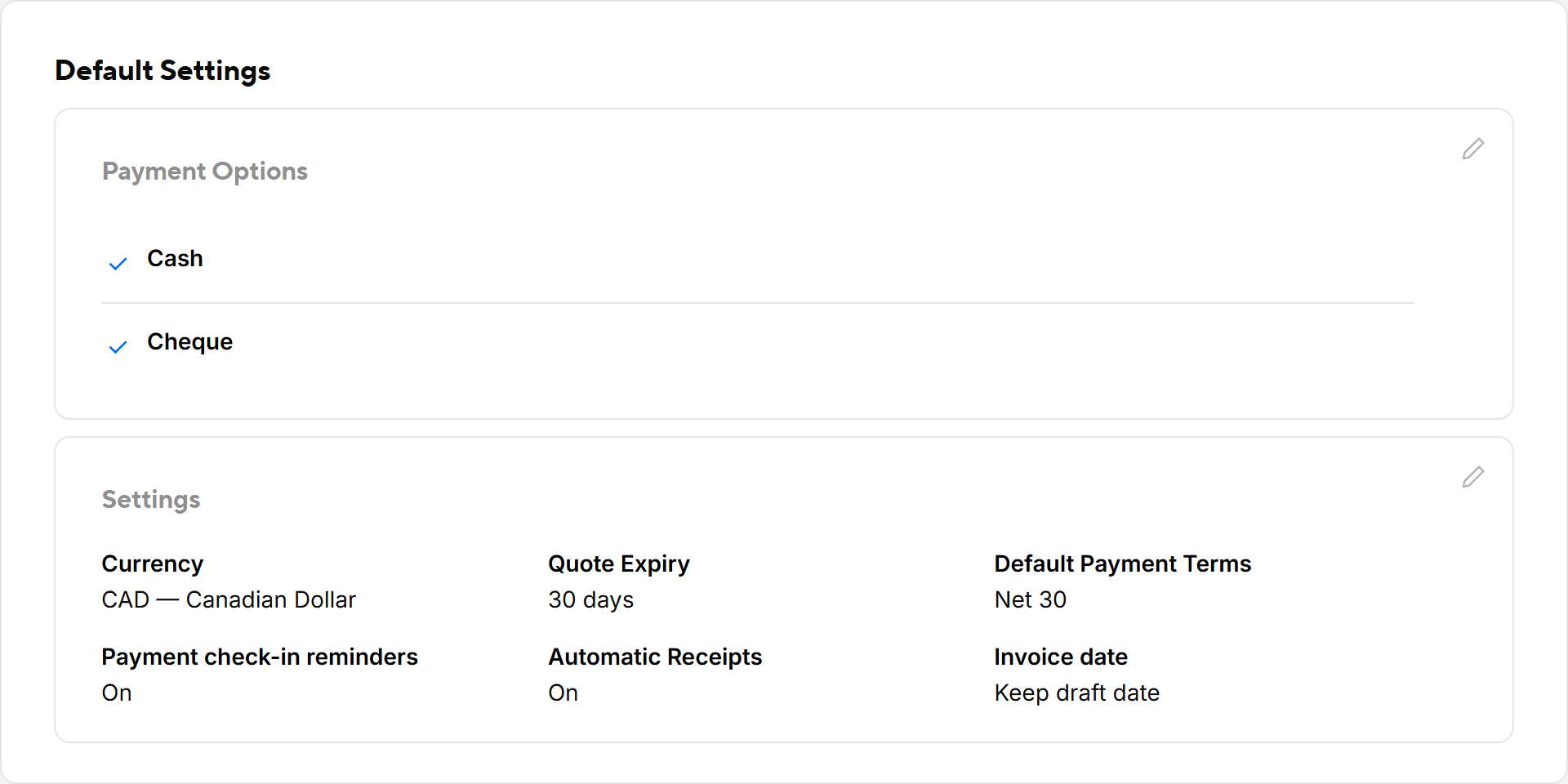
In the Default Settings section, the Settings card controls how new invoices and quotes start out:
- Currency: always CAD — Canadian Dollar. This cannot be changed.
- Quote Expiry: the number of days a new quote stays valid, from 1 to 365. Leave it blank to use 30 days.
- Default Payment Terms: choose Due on receipt, Net 7, Net 15, Net 30, Net 60 or Custom. This pre-fills the due date on new invoices.
- Automatic Receipts: when on, a receipt is sent automatically when an invoice is paid.
- Set invoice date to the send date: when on, each invoice is dated the day it is sent.
Quote expiry, payment terms and the invoice date setting apply to invoices and quotes you create from now on. You can also override payment terms, quote expiry, tax calculation and automatic receipts for an individual customer. See Editing customer details.
The Payment Options card shows which payment methods your customers can use, such as Interac e-Transfer, EFT, cheque or cash.
Step 4: Manage your customer tags
Your organization's shared tag list is managed from the Customers page. Click Customers in the top navigation, then click Manage tags. See Organizing customers with tags.
Your organization's time zone
ATB Invoicing uses Mountain Time (Edmonton) for your organization. It decides when an invoice becomes overdue, when a quote expires, and when the dashboard's monthly figures reset. You cannot change the time zone in the app.

