
Yes. You can check what your customer will see before you send a quote or invoice, and you can email yourself a test copy at any time. This article explains each way to preview a document without sending it to your customer.
Preview a draft before you send it
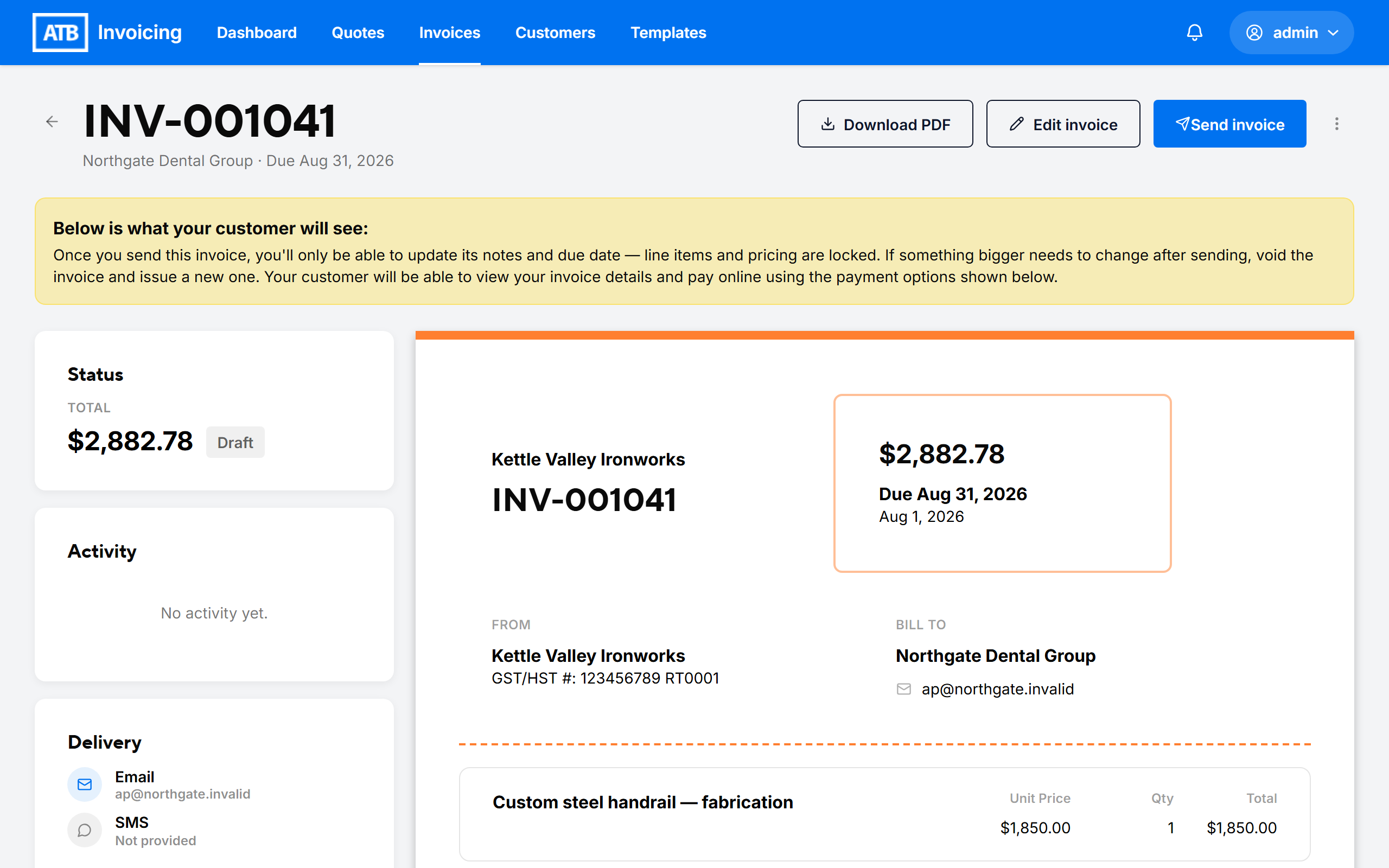
When you finish filling in a new quote or invoice, click See Preview. ATB Invoicing saves the document as a draft and opens it.
At the top of a draft, a highlighted message reads Below is what your customer will see:. The document below that message shows the details, line items, taxes, and totals as your customer will see them. Nothing is sent to your customer until you click Send quote or Send invoice.
From the draft, you can:
- Click Edit quote or Edit invoice to make changes, then check the draft again.
- Click Send quote or Send invoice when you are ready.
Note. A draft quote does not show payment methods. Payment methods appear once the quote is accepted and becomes an invoice.
Email yourself a test copy
A test copy lets you see the email your customer receives and open the document the way they will. Sending a test does not change the status of the quote or invoice and does not notify your customer. No one can accept or decline a test quote.
- Open the quote or invoice.
- Open the actions menu (the three-dot button).
- Click Send test quote or Send test invoice. For a paid invoice, the option is Send test receipt.
- Enter the address to send to in Your email.
- Click Send test.
You can send a test copy before or after the real send. Test copies are not available for voided quotes or invoices.
Tip. If the test copy does not arrive, check your spam or junk folder.
Download a PDF copy
To review the document as a file, open the quote or invoice and click Download PDF. This saves a copy to your device without sending anything to your customer.
Common issues
I do not see the actions menu or the Send test option
Sending test copies requires permission to manage invoices. If the actions menu is missing, ask an administrator in your organization to review your role.
The preview shows the wrong customer details or dates
The preview reflects what is saved on the draft. Click Edit quote or Edit invoice, correct the details, and save. Once a quote or invoice is sent, some fields are locked. See Why can't I edit my invoice or quote?.

