
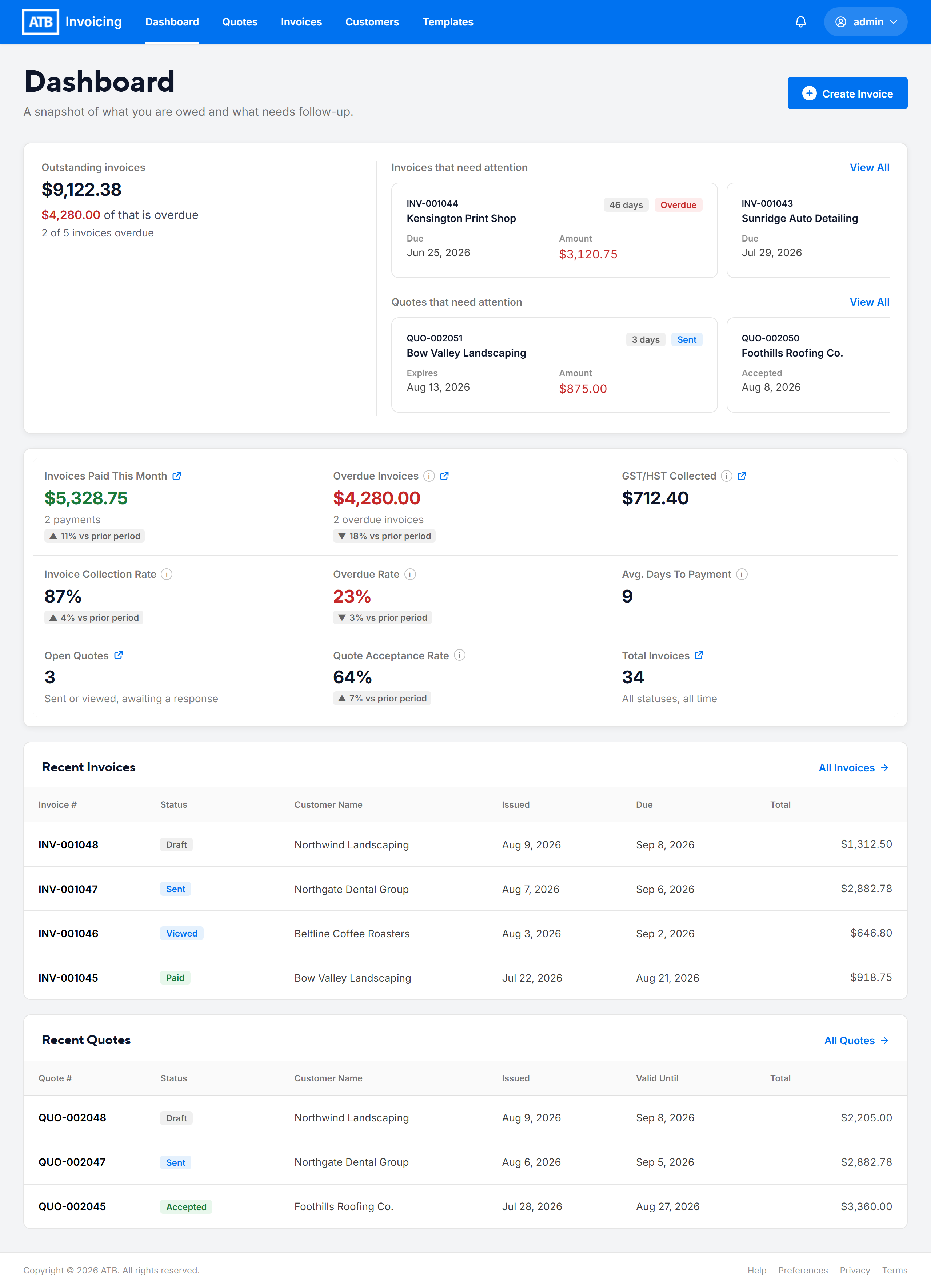
Your dashboard is the first page you see after you sign in. It shows a snapshot of what you are owed, what needs follow-up, and how your quotes and invoices are performing this month.
The header
The blue header appears on every page. Use it to move around ATB Invoicing:
- Dashboard, Quotes, Invoices, Customers, and Templates open each area of the app. On a phone, click the menu button to see these links.
- The bell icon opens your notifications. A yellow dot means you have unread notifications.
- Your name opens your profile menu, where you can Sign Out. Administrators also see Manage Organization here.
To create an invoice from the dashboard, click Create Invoice at the top right of the page.
Outstanding invoices
The first panel shows the total balance of your Outstanding invoices: invoices you have sent that are not yet fully paid. Below the total, you see how much of that amount is overdue and how many invoices are overdue. If nothing is overdue, the panel says Nothing overdue right now.
Invoices and quotes that need attention
Beside the outstanding total, two rows of cards highlight items you may want to act on. Click any card to open that invoice or quote, or click View All to open the full list.
Invoices that need attention can include:
- Overdue invoices, with the due date and amount
- Invoices your customer opened but has not paid yet
- Drafts you started but have not sent
Quotes that need attention can include quotes that are expiring soon, expired, declined, or accepted, quotes your customer has viewed, and drafts you have not sent.
If there is nothing to show, you see No invoices need your attention right now or No quotes need your attention right now.
Monthly metrics
The metrics panel shows nine figures. Most are measured for the current calendar month. Hover over a metric's information icon to see how it is calculated. Click a metric that links to a list, such as Overdue Invoices, to see the matching invoices.
- Invoices Paid This Month — the amount collected this month and the number of payments.
- Overdue Invoices — the remaining balance on invoices past their due date.
- GST/HST Collected — GST/HST on invoices paid this calendar month.
- Invoice Collection Rate — the amount collected divided by the total of invoices sent this month.
- Overdue Rate — the overdue balance divided by the total outstanding balance for invoices issued this month.
- Avg. Days To Payment — the average number of days from sending to payment, for invoices paid this month.
- Open Quotes — quotes that are sent or viewed and waiting for a response.
- Quote Acceptance Rate — accepted quotes divided by all quotes issued this month, not counting drafts or voided quotes.
- Total Invoices — every invoice you have created, in any status.
Some metrics also show a change compared with the previous period.
Note. The dashboard always reports on the current calendar month. There is no setting to change the reporting period.
How a payment changes your dashboard
When an invoice is paid in full, the dashboard updates the next time you load it:
- Outstanding invoices goes down by the amount paid. If the invoice was overdue, Overdue Invoices goes down too.
- Invoices Paid This Month goes up by the amount paid.
- GST/HST Collected goes up by any GST/HST on the paid invoice.
- Invoice Collection Rate and Avg. Days To Payment are recalculated.
Recent invoices and quotes
At the bottom of the page, Recent Invoices and Recent Quotes list your latest documents with their status, customer, date, and total. Click a row to open it, or click All Invoices or All Quotes to see the full list.

