
If a customer says they paid but the invoice is not marked Paid, or the customer cannot complete an Interac e-Transfer, the cause is usually visible on the invoice itself. Follow the checks below in order to find out where the payment is and what to do next.
Before you begin
You need permission to manage invoices. The checks in this article apply to invoices that are Sent, Viewed, or Overdue.
Step 1: Check which payment method the customer used
Open the invoice from Invoices. The How to pay section lists the payment methods attached to the invoice.
- Interac e-Transfer payments can be checked from inside ATB Invoicing. Continue to Step 2.
- EFT, Cheque, and Cash payments are not tracked automatically. Confirm that the funds have arrived in your bank account, then open the invoice menu and select Mark as paid.
Note. ATB Invoicing cannot see EFT deposits, cheques, or cash. Until you select Mark as paid, these invoices keep their current status, even after the money arrives.
Step 2: Refresh the Interac status
ATB Invoicing does not update the Interac status on its own. You need to ask for the latest status.
- In the How to pay section, find the Interac e-Transfer panel.
- Select Refresh next to the money request status.
If Interac reports that the deposit is complete, the invoice moves to Paid and a Payment received message appears.
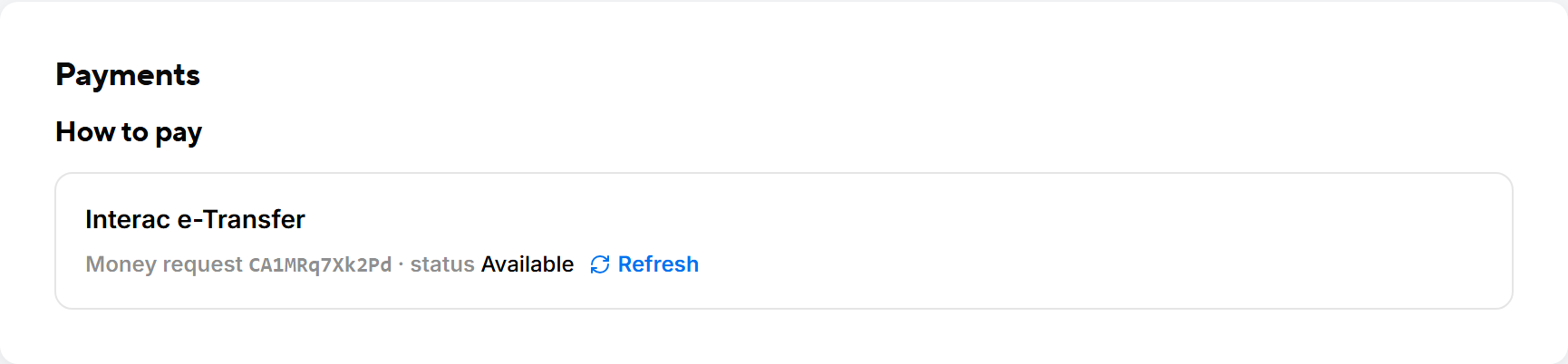
Step 3: Read the Interac status
After you refresh, the panel shows one of these statuses:
- Available — The request is live and waiting for the customer. The customer has not completed the transfer yet. Ask them to open the invoice link and select Pay by Interac e-Transfer, then finish the transfer in their online banking.
- Deposit complete — The customer paid. The invoice is marked Paid.
- Declined — The customer's bank rejected the transfer. Common reasons are insufficient funds, a transfer limit on the customer's account, or a fraud check by their bank. ATB Invoicing does not receive the reason, so ask the customer what their bank told them.
- Expired — The request passed its expiry date before the customer paid. The original payment link no longer works.
- Cancelled — The request was withdrawn. This happens, for example, when you record a payment by another method.
- Unknown — Interac returned a status that ATB Invoicing does not recognize. Wait a few minutes and select Refresh again.
Step 4: Issue a new payment request if needed
When the status is Declined, Expired, or Cancelled, the customer cannot pay with the old request. To give them a working one:
- In the Interac e-Transfer panel, select Issue new payment request. If the panel shows no request at all, select Issue payment request.
- Open the invoice menu and select Resend invoice so the customer receives a fresh link.
The customer then opens the new link and selects Pay by Interac e-Transfer again.
Tip. If a customer tries to pay and sees "This payment request is no longer available", there is no live Interac request on the invoice. Issue a new one and resend the invoice.
How long an Interac request stays open
ATB Invoicing sets each Interac request to expire about one day after the invoice due date. If the due date is far in the future, the request expires at the end of the longest period Interac allows. A request that expires does not change the invoice status. The invoice stays Sent or Viewed, and shows as Overdue after the due date.
Common issues
The customer paid by EFT, but the invoice still says Sent
EFT, cheque, and cash payments never update automatically. Confirm the deposit, then select Mark as paid.
The status still shows Available after the customer says they paid
The customer may have opened the request but not confirmed the transfer in their online banking. Ask them to check their banking app for a pending or completed transfer, then select Refresh again.
The invoice was sent without Interac e-Transfer
If the invoice amount is above your business's Interac request limit, ATB Invoicing removes the Interac option when you send. See Interac e-Transfer Requests for high-value invoices.

