
Sending delivers your invoice or quote to your customer by email, text message, or both, and moves it from Draft to Sent. Follow the steps below to send a draft, record one you delivered yourself, and resend a document your customer cannot find.
Before you begin
You will need:
- A draft invoice or quote. If you have not created one yet, see Create a draft invoice or Creating a draft quote.
- An email address or phone number on the customer's record.
- For an invoice, at least one payment option. For a quote, at least one payment method.
If the send button is greyed out, hover over it to see why. An invoice shows "Attach at least one payment option before sending". A quote shows "Select a payment method before sending".
Step 1: Review the draft
Open the invoice or quote and check every detail. After you send it, the line items, prices and taxes are locked. See Editing sent invoices and quotes for what you can still change.
Tip. To see exactly what your customer receives, open the more actions menu (the three-dot button) and click Send test invoice or Send test quote. Enter Your email and send yourself a copy.
Step 2: Choose how to deliver it
- Click Send invoice or Send quote at the top of the page. You can also use the same option in the row menu on the Invoices or Quotes page.
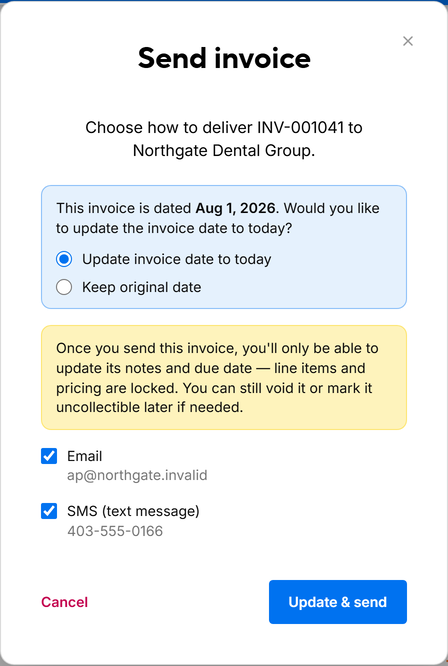
- In the window that opens, tick Email, SMS (text message), or both. Each option shows the address or number it will use. An option is unavailable if the customer has no matching contact detail.
- If your invoice date is in the past, ATB Invoicing asks whether to Update invoice date to today or Keep original date. Choose one.
- Click the confirm button, for example Send via email.
A confirmation shows where the invoice or quote was sent, and the status changes to Sent. When your customer opens it, the status changes to Viewed.
To send several drafts at once, select them on the Invoices or Quotes page and click Send in the action bar.
What your customer receives
Your customer gets a message with a link to view the invoice or quote online.
- Invoices: the customer can view the invoice and pay using the payment options you attached. If you attached Interac e-Transfer, ATB Invoicing creates the Interac payment request when you send.
- Quotes: the customer can view the quote and accept or decline it.
If you have set a notification email for your organization, customer replies to the email go to that address.
Note. If you scheduled an invoice to send later and then send it now, it goes out immediately and the scheduled send is cancelled.
Step 3 (optional): Mark as sent instead
If you already delivered the document yourself, for example by PDF or in person, record it without sending anything:
- Open the draft and open the more actions menu (the three-dot button).
- Click Mark as sent, then confirm.
The status changes to Sent and nothing is emailed or texted. A quote marked as sent can then be accepted or declined online by your customer.
Step 4: Resend an invoice or quote
Resend when your customer cannot find the original message.
- Open the invoice or quote.
- For an invoice, click Resend invoice at the top of the page. For a quote, open the more actions menu and click Resend quote.
- Choose the delivery methods and click the confirm button.
You can resend an invoice that is Sent, Viewed or Partially Paid, and a quote that is Sent or Viewed. Resending does not change the status or the dates.
Tip. Before you resend, check the customer's email address and phone number. If they are wrong, update the customer record first. See Editing customer details.
Step 5 (invoices only): Issue a new Interac payment request
If an Interac e-Transfer request has expired, been cancelled or been declined, resending the invoice does not create a new one. Instead, go to the Payments section of the invoice and click Issue new payment request under Interac e-Transfer.
Common issues
My customer says they never got the email
Ask them to check junk and spam folders, and confirm the address on file. For more steps, see Why didn't my customer receive their quote or invoice email?
The send button is greyed out
The invoice has no payment option, or the quote has no payment method. Click Edit invoice or Edit quote and add one.

